SYSBOX WinUpdater documentation
Overview
SYSBOX WinUpdater keeps your Windows servers up to date from one web console, without WSUS. It is a single portable program with its own web server and a SQLite database. It needs no installation, no SQL Server and no IIS. WinUpdater connects to your servers with standard PowerShell remoting (WinRM) and uses the PSWindowsUpdate module to find and install updates. No agent is installed on the servers.
What you can do:
- See every server's update status on a dashboard
- Check servers for updates: one, several or all
- Install all pending updates, or only the ones you select, with an optional automatic restart
- Hide updates you don't want installed
- Import servers from Active Directory
- See who did what in the audit log
Requirements
Machine running WinUpdater
- Windows 10/11 or Windows Server 2016 or newer, 64-bit
- Windows PowerShell 5.1 (included in Windows)
- A free TCP port for the web console (default 8080)
- Network access to the managed servers on the WinRM ports (below)
Managed servers
- Windows Server 2012 or newer (Windows clients work too). On 2012 / 2012 R2, install Windows Management Framework 5.1 (PowerShell 5.1); otherwise PSWindowsUpdate can't be deployed and WinUpdater falls back to the Windows Update API
- PowerShell remoting enabled. This is the default on Windows Server 2012 and newer. If it is off, run this once as administrator:
Enable-PSRemoting -Force - Firewall open for WinRM: TCP 5985 (HTTP) or TCP 5986 (HTTPS)
- An account that is a local administrator on the server
- Access to Windows Update or Microsoft Update (the servers download updates themselves)
PSWindowsUpdate doesn't need to be installed beforehand. WinUpdater copies it to each server on the first check (see Checking and installing updates).
Installation
- Download
SYSBOX-WinUpdater.zipand extract it to a folder, e.g.C:\Tools\SysboxWinUpdater. - Optional: adjust
config.json(port, HTTPS; see config.json). - Double-click start.cmd. WinUpdater starts in a console window and opens the browser at
http://localhost:8080/. - On the first start, create the administrator account (user name, optional display name, password with at least 6 characters).
That's it. All data (database, keys, logs) is stored inside the program folder.
Run as a Windows service
To keep WinUpdater running without a logged-on user:
- Right-click install-service.cmd → Run as administrator.
- Without parameters, the service runs as LocalSystem.
install-service.cmd CONTOSO\svc-wu P@ssw0rdruns the service with this domain account. Servers without saved credentials are then contacted with this account.
- The script creates the service "SYSBOX WinUpdater" (service name
SysboxWinUpdater, start type automatic/delayed, restart on failure), opens the web port in the Windows Firewall (rule "SYSBOX WinUpdater") and starts the service. - To remove it: run uninstall-service.cmd as administrator. Your data is kept.
Stop the console version before installing the service; both use the same port.
First steps
- Add servers: click + Add in the tree (top left). See Adding servers.
- WinUpdater checks each new server for updates automatically. The first check takes 1-3 minutes, because PSWindowsUpdate is deployed and Windows Update searches.
- Open the Dashboard to see which servers need updates.
- Check the Automatic updates setting of your servers (see Windows Update policy), so they don't install and restart on their own.
- Install updates: on a server with Install all or Install selected, or for all servers with Update all servers on the dashboard.
Dashboard
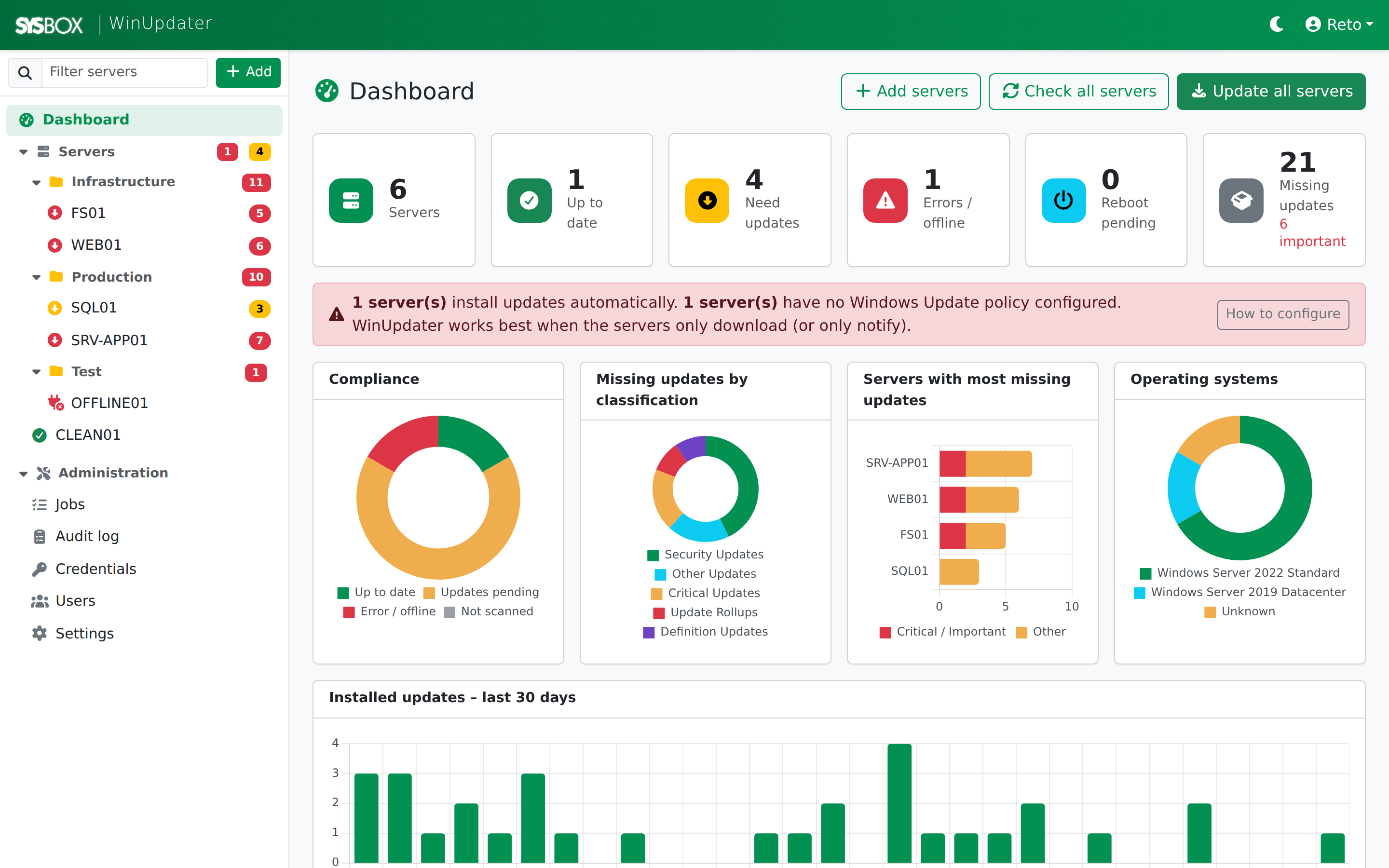
The dashboard is the first node in the tree.
- Tiles: servers, up to date, need updates, errors/offline, reboot pending, missing updates (with the number of critical/important updates).
- Warning bar: appears when servers install updates automatically or have no Windows Update policy configured. See Windows Update policy.
- Charts: compliance, missing updates by classification, servers with the most missing updates, operating systems, installed updates over the last 30 days.
- Servers table: sortable. Click a row to open the server. The buttons check a server or install its updates.
- Recent activity: the latest jobs. Click one to see its log.
- Buttons: Add servers, Check all servers, Update all servers.
Status colours
| Icon/colour | Meaning |
|---|---|
| Green check | Up to date |
| Red download icon / red number | Updates pending, at least one is Critical or Important |
| Yellow download icon / yellow number | Updates pending (moderate, low or unrated) |
| Red triangle | Last check failed (error) |
| Plug with red cross | Server not reachable (offline) |
| Grey question mark | Not checked yet |
| Spinning circle | A job is running for this server |
| Red power icon | Reboot pending |
Group folders in the tree show the total number of pending updates of their servers. The folder is red if any server in it has important updates.
Adding servers
Click + Add in the tree or Add servers on the dashboard.
Single server
| Field | Description |
|---|---|
| Host name or IP address | How WinUpdater connects, e.g. srv01 or srv01.contoso.local or 10.0.0.25 |
| Display name | Optional. Defaults to the host name in capitals |
| Group | Optional folder in the tree |
| Credentials | Service account (no explicit credentials), a saved credential, or a new credential |
| Notes | Free text, shown on the server page |
Click Test connection to check the connection before saving. The button counts the seconds while testing; a test usually takes 3-10 seconds. If it succeeds, you see the server name, OS and the PSWindowsUpdate version.
Credentials: the account must be a local administrator on the server. Use DOMAIN\user, or SERVER\user for local accounts.
If you choose "Service account", WinUpdater connects with the account it runs as (your user in console mode, or the service account).
TrustedHosts - servers by IP or outside the domain
If the machine running WinUpdater and the server are not in the same domain, or you add a server by IP address, Windows only connects when the server is in the TrustedHosts list of the WinUpdater machine. Otherwise the test fails with "…the destination machine must be added to the TrustedHosts configuration setting…".
The Trust command section below Test connection shows the exact command with your host name filled in, plus a Copy button. Run it once in an elevated PowerShell (Run as administrator) on the machine where WinUpdater runs:
Set-Item WSMan:\localhost\Client\TrustedHosts -Value "srv01" -Concatenate -ForceImportant:
- The entry must match exactly what you entered as host. A wildcard like
192.168.200.*only matches when you connect by IP. It does not match the namesrv01, even if the name resolves to that IP. -Concatenateadds to the list. Without it, the list is replaced.- Show the current list:
Get-Item WSMan:\localhost\Client\TrustedHosts - Avoid
*(trust everything). It disables the server identity check for every connection. - Domain servers added by name need no entry, because Kerberos is used.
WinUpdater itself never changes TrustedHosts. It only shows the command.
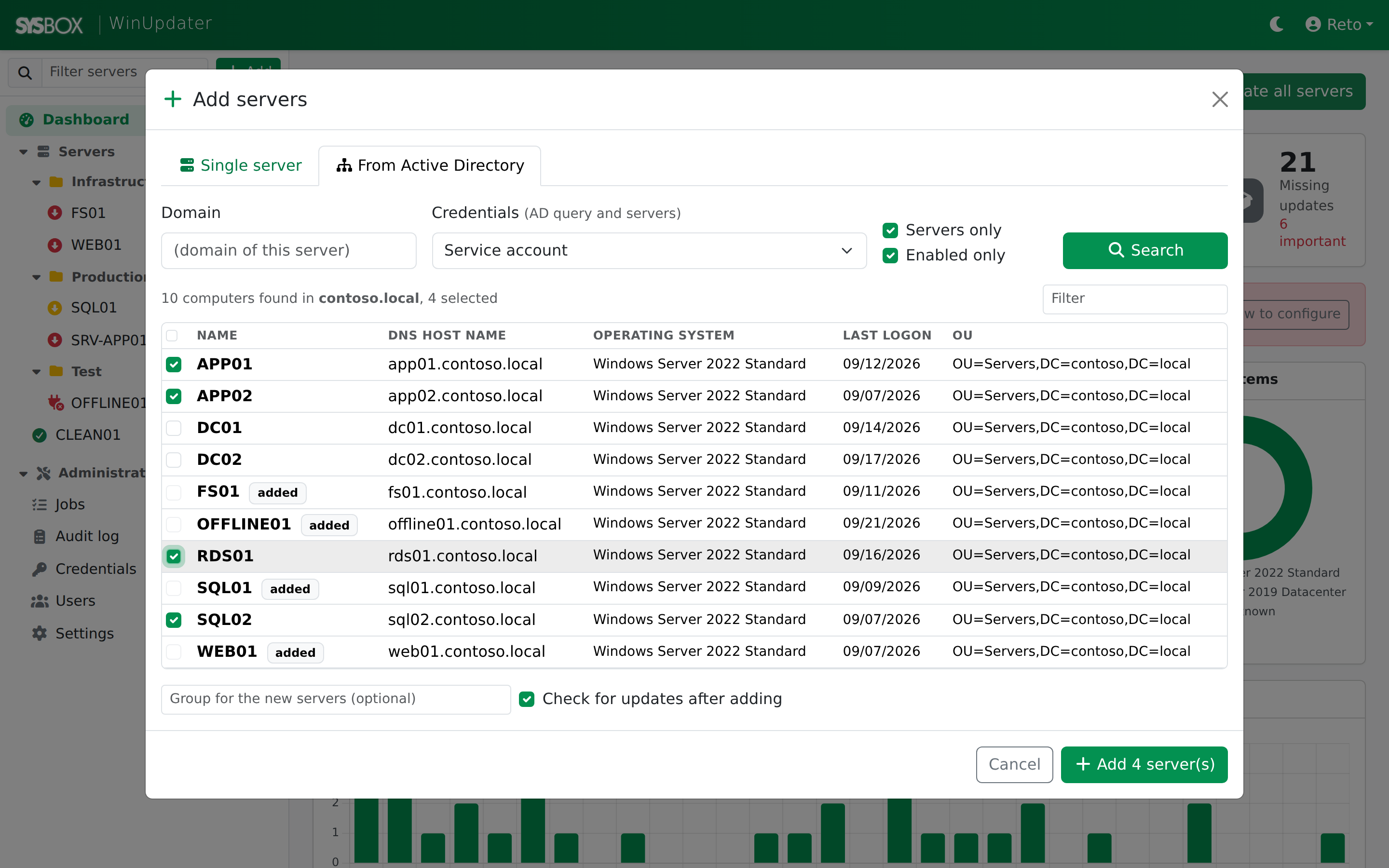
Import from Active Directory
Tab From Active Directory:
- Domain: leave it empty to use the domain of the WinUpdater machine, or enter it, e.g.
contoso.local. - Credentials: used for the directory query and for the imported servers.
- Servers only (operating system contains "Server") and Enabled only filter the list.
- Click Search, select computers (servers that already exist are marked "added"), optionally enter a group, and click Add n server(s).
- With Check for updates after adding, all new servers are checked right away.
No RSAT tools are needed.
Checking and installing updates
Check for updates
Check for updates on a server (or Check all servers on the dashboard) asks Windows Update on the server which updates are available. The result is live, not cached. It also reads the system information and the Windows Update setting.
On the first check, WinUpdater deploys PSWindowsUpdate to the server, in this order:
- from the
Modulesfolder next to WinUpdater (bundled with the download), - from the PSWindowsUpdate module installed on the WinUpdater machine,
- from the PowerShell Gallery on the server (needs internet).
If none of this works, WinUpdater uses the Windows Update API directly and shows a warning in the job log.
By default only Windows updates are searched. To include other Microsoft products (SQL Server, Office, …), enable Settings → Use Microsoft Update. If a server is configured for a WSUS server, the search goes to WSUS, and the server page shows a warning.
Install updates
- Install all (n): installs all pending updates of the server.
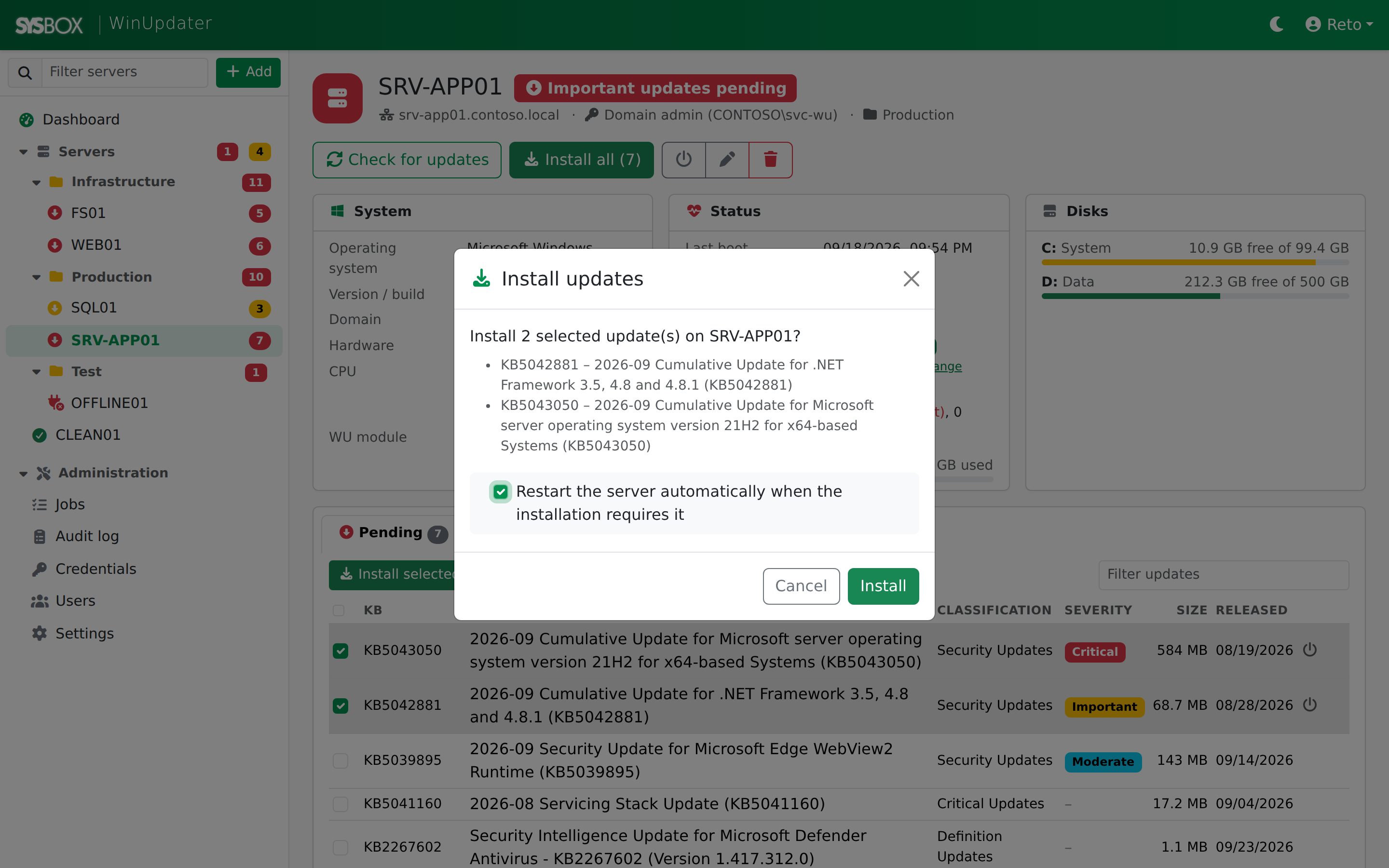
- Install selected: tick updates in the Pending tab, then click Install selected.
- Update all servers (dashboard): starts an installation on every server with pending updates.
The confirmation dialog lists the updates and offers "Restart the server automatically when the installation requires it". Without this option, the server is never restarted; the server page then shows Reboot pending.
What happens during an installation:
- WinUpdater creates a one-time scheduled task on the server that runs as SYSTEM. Windows doesn't allow installing updates directly from a remote session.
- The task downloads and installs the updates with PSWindowsUpdate and writes progress to
C:\ProgramData\SysboxWinUpdater\on the server. - WinUpdater reads the progress every 15 seconds and shows it live in the job log.
- If a restart is required and allowed, the server restarts 30 seconds after the installation. WinUpdater waits until it is back (up to 30 minutes).
- The server is checked again automatically, and the job ends with a summary, e.g. "5 of 6 update(s) installed, 1 failed, server rebooted".
Installations can take a long time (cumulative updates often 20-60 minutes). The maximum is 240 minutes (configurable). You can close the browser meanwhile; the job continues.
Hiding updates
Hidden updates are not offered for installation and are not installed by "Install all".
- Hide: tick updates in Pending → Hide selected.
- Unhide: tab Hidden → tick → Unhide selected.
Hiding is stored on the server itself (Windows Update), not only in WinUpdater. Tip: if a server seems up to date but has an old build, check the Hidden tab. A hidden cumulative update blocks all later ones.
Server details
Click a server in the tree.
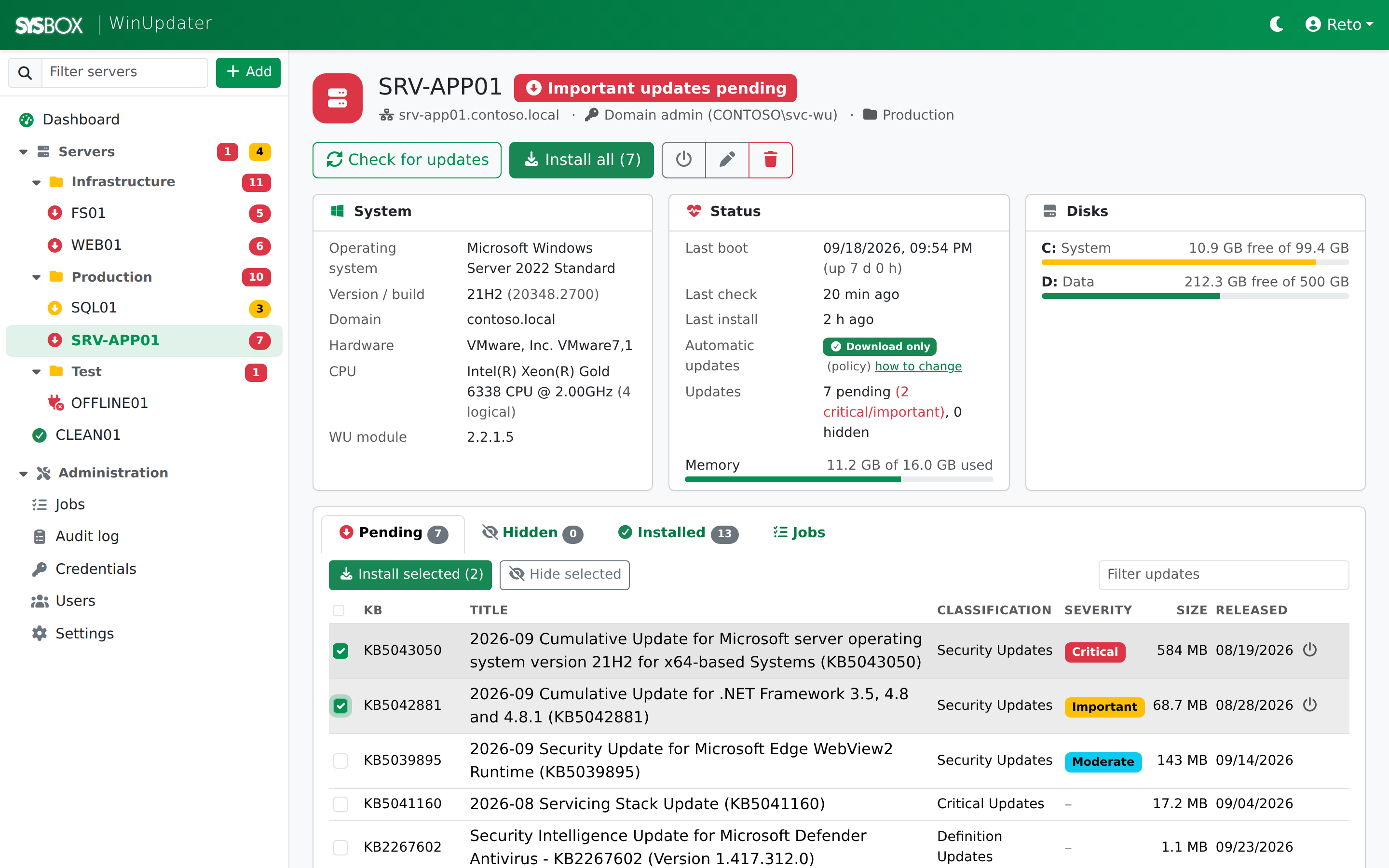
- Header: status, reboot pending, host, credential, group. Buttons: Check for updates, Install all, Restart (power icon), Edit (pencil), Remove (bin). Removing only deletes the server from WinUpdater; nothing is changed on the server.
- System: operating system, version/build, domain, hardware, CPU, and the PSWindowsUpdate version ("WU module").
- Status: last boot and uptime, last check, last install, Automatic updates setting (see Windows Update policy), update counts and memory usage.
- Disks: free space per disk. Red below 10% or 5 GB free, yellow below 20%.
- Tabs:
- Pending: available updates with KB, title, classification, severity, size and release date. Icons show "already downloaded" and "may require a restart". Click a title for the description and a link to the Microsoft support article.
- Hidden: hidden updates.
- Installed: the Windows Update history (installations only). Only the latest 500 entries are loaded. If there are more, the tab shows "500+" and a note.
- Jobs: all jobs of this server.
Restarting servers
The power icon on the server page restarts the server (after confirmation). WinUpdater waits until the server is back and checks it again.
Jobs
Every action (check, install, hide, unhide, restart) runs as a background job.
- Up to 8 jobs run in parallel (configurable), but only one job per server at a time. Further jobs wait in the queue.
- Administration → Jobs lists all jobs. Click a job for its live log.
- Queued jobs can be cancelled. Cancelling a running installation only stops the monitoring. The installation already running on the server continues there.
- When a job finishes, a notification appears at the bottom right.
- Old jobs are deleted after 90 days (configurable).
Audit log
Administration → Audit log records who did what and when: logins (including failed ones), adding/editing/removing servers, checks, installations (with the KB numbers), hide/unhide, restarts, user and credential changes, settings changes and WinUpdater updates. It includes the IP address and is searchable. Entries are kept for 365 days (configurable).
Users and credentials
Users (Administration → Users): all users have the same rights. There are no roles; the audit log shows who did what. You can add, edit, disable and delete users, and reset passwords. You can't disable or delete your own account. Change your own password via the user menu (top right) → Change password.
Credentials (Administration → Credentials): saved accounts for connecting to servers. Passwords are stored encrypted (ASP.NET Data Protection, keys protected with Windows DPAPI). Deleting a credential switches its servers to "Service account".
Windows Update policy Since 1.1
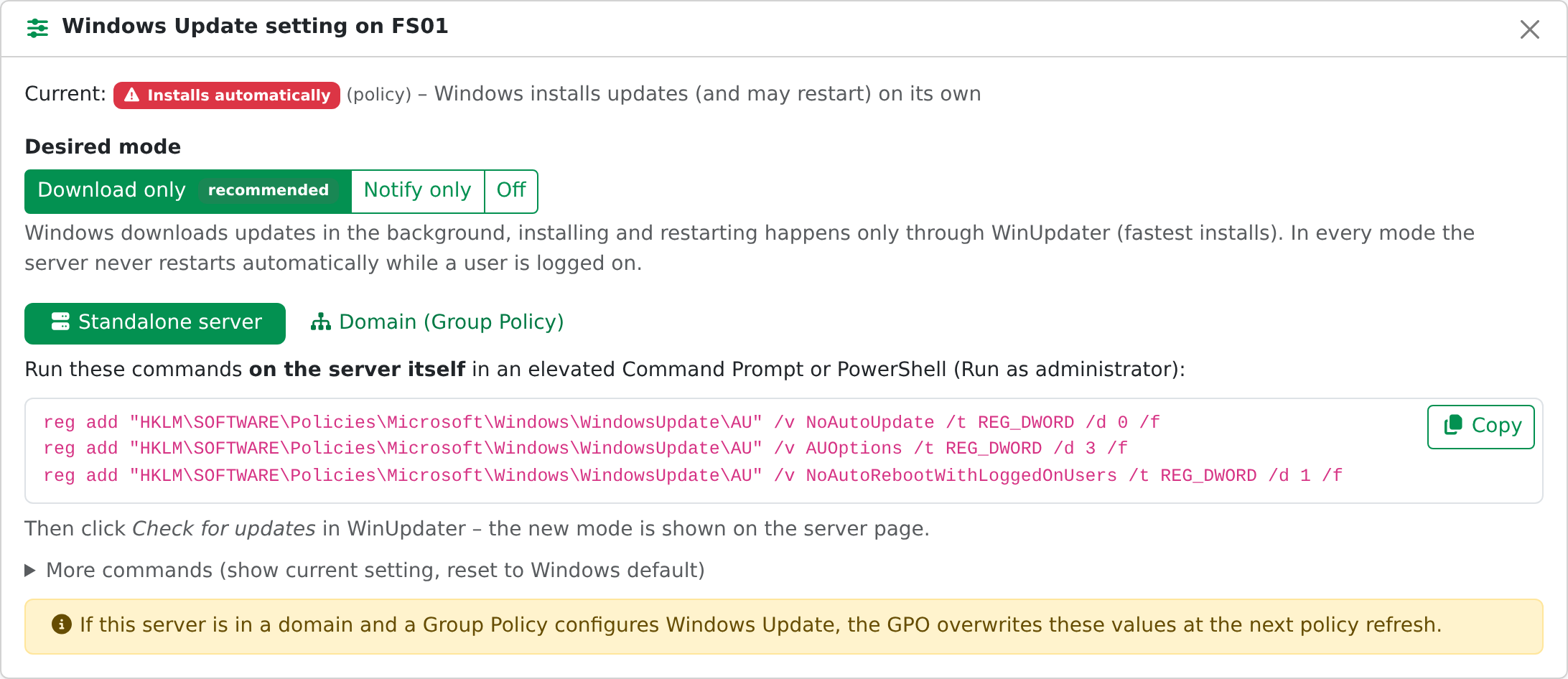
For WinUpdater to be in control, servers should not install updates and restart on their own. Every check reads the server's Automatic Updates setting and shows it on the server page. The dashboard warns about servers that install automatically or have no policy. WinUpdater only reads this setting; it never changes it.
| Badge | Meaning | OK? |
|---|---|---|
| Download only | Downloads automatically, installs only via WinUpdater (recommended) | Yes |
| Notify only | Nothing downloaded or installed automatically | Yes |
| Download, notify install | Like download only | Yes |
| Off | Automatic updates disabled; WinUpdater still works | Yes |
| Installs automatically | Windows installs and may restart on its own | No |
| Local admin decides / Not configured | Not controlled by a policy | Caution |
Click how to change on the server page, or see Settings, for copy-ready instructions.
Standalone servers
Run on the server itself, in an elevated Command Prompt or PowerShell. Example for Download only (recommended):
reg add "HKLM\SOFTWARE\Policies\Microsoft\Windows\WindowsUpdate\AU" /v NoAutoUpdate /t REG_DWORD /d 0 /f
reg add "HKLM\SOFTWARE\Policies\Microsoft\Windows\WindowsUpdate\AU" /v AUOptions /t REG_DWORD /d 3 /f
reg add "HKLM\SOFTWARE\Policies\Microsoft\Windows\WindowsUpdate\AU" /v NoAutoRebootWithLoggedOnUsers /t REG_DWORD /d 1 /f- Notify only: use
AUOptions/d 2. - Off: only
NoAutoUpdate /d 1(plus theNoAutoRebootWithLoggedOnUsersline). - Show the current setting:
reg query "HKLM\SOFTWARE\Policies\Microsoft\Windows\WindowsUpdate\AU" - Back to Windows default:
reg delete "HKLM\SOFTWARE\Policies\Microsoft\Windows\WindowsUpdate\AU" /f
Then click Check for updates in WinUpdater; the new mode is shown. If a domain Group Policy configures Windows Update, it overwrites these values at the next policy refresh.
Domain (Group Policy)
- Open Group Policy Management, create a GPO (e.g. "Windows Update - managed by WinUpdater") and link it to the OU with your servers.
- Edit it: Computer Configuration → Policies → Administrative Templates → Windows Components → Windows Update (on newer templates: … → Windows Update → Manage end user experience).
- Configure Automatic Updates → Enabled, option 3 - Auto download and notify for install (or 2 - Notify for download and auto install for "notify only"; Disabled for "off").
- No auto-restart with logged on users for scheduled automatic updates installations → Enabled (on newer templates under Legacy Policies).
- Apply with
gpupdate /forceon a server, or wait up to 90 minutes. Then click Check for updates in WinUpdater.
Don't configure "Specify intranet Microsoft update service location" (WSUS) in this GPO, otherwise the servers search the WSUS server.
config.json
config.json in the program folder contains the settings needed before the database is opened. Restart WinUpdater (or the service) after changes.
Relative paths are relative to the program folder. Every key can also be set with an environment variable SYSBOX_<Key> or on the command line (--Port 9090).
| Key | Default | Description |
|---|---|---|
Port | 8080 | Web port |
BindAddress | * | * = all network interfaces, or one IP (e.g. 127.0.0.1 for local only) |
UseHttps | false | HTTPS on the web port, see HTTPS |
CertificatePath | "" | .pfx file for HTTPS |
CertificatePassword | "" | Password of the .pfx |
DatabasePath | data\winupdater.db | SQLite database |
LogDirectory | logs | Log files (one per day) |
LogRetentionDays | 30 | Days to keep log files |
SessionTimeoutMinutes | 480 | Login session lifetime (extended while you work) |
PowerShellPath | powershell.exe | Windows PowerShell 5.1 |
WinRmUseSsl | false | Connect to all servers via WinRM over HTTPS (port 5986) |
WinRmPort | 0 | 0 = default port (5985/5986) |
WinRmAuthentication | Default | Default, Negotiate, Kerberos, CredSSP, Basic |
MaxParallelJobs | 8 | Jobs in parallel (on different servers) |
OperationTimeoutMinutes | 30 | Timeout for checks, hide/unhide, restart |
InstallTimeoutMinutes | 240 | Maximum duration of an installation |
RebootWaitMinutes | 30 | How long to wait for a server after a restart |
UpdateUrl | sysbox.io download folder | Source of WinUpdater updates; "" disables updates completely |
AutoUpdateCheck Since 1.1 | true | false = no automatic check for new WinUpdater versions (manual check still works) |
config.json may contain comments (// …).
HTTPS for the web console
- Get a certificate for the name you use in the browser (CN or SAN), e.g. from your internal CA, and export it as .pfx with the private key.
- Copy it into the program folder, e.g.
cert\winupdater.pfx. - In
config.json:"Port": 8443, "UseHttps": true, "CertificatePath": "cert\\winupdater.pfx", "CertificatePassword": "…", - Restart WinUpdater and open
https://<server>:8443/.
Notes:
- If you run it as a service and change the port, run
uninstall-service.cmdandinstall-service.cmdagain, so the firewall rule uses the new port. - The .pfx password is stored in plain text in
config.json. Restrict access to the program folder. - With
UseHttps: true,CertificatePathmust be set.
Settings
Administration → Settings:
| Setting | Description |
|---|---|
| Check all servers for updates automatically, every n hours | Background check of all servers (off by default) |
| Check for new WinUpdater versions automatically Since 1.1 | Twice a day. Greyed out when AutoUpdateCheck is false in config.json |
| Use Microsoft Update | Also search updates for other Microsoft products |
| Keep job history (days) | Default 90 |
| Keep audit log (days) | Default 365 |
The right side shows the startup configuration (read-only), and at the bottom there are the Windows Update policy help and the requirements.
Updating WinUpdater Since 1.1
When a new version is available, a white Update x.y button appears in the top bar. It opens the update dialog with the installed and latest version and the release notes.
Install x.y:
- Running or queued jobs must be finished first.
- WinUpdater downloads the new version and verifies its SHA-256 checksum. If it doesn't match, nothing is installed.
- WinUpdater stops, backs up the current program files to
data\update\backup-<old version>, copies the new files and starts again (the service, or the program). data\, logs\ and config.json are never changed. If copying fails, the backup is restored. - The browser reloads automatically when the new version is running. Log:
data\update\update.log.
- Check now in the dialog checks immediately. The link "check for updates" is also in Settings next to the version.
- Turn off the automatic check:
"AutoUpdateCheck": falsein config.json. Turn off updates completely:"UpdateUrl": "". - Manual update: stop WinUpdater, extract the new zip over the program folder without overwriting config.json, and start again.
Not supported (as of 1.1)
- Caching or distributing update files (every server downloads from Microsoft itself)
- Approval workflows like WSUS
- Roles/permissions for users
- Connections other than WinRM (no agent, no SMB/PsExec)
- A per-server HTTPS switch for WinRM (only globally via
WinRmUseSsl)
Privacy
WinUpdater does not submit any data or usage statistics.
The only network call it makes to sysbox.io is a periodic check for new versions (see Updating WinUpdater). No data is sent with this request - our server only responds with the version number of the current release.
This check can be turned off in config.json (see config.json).
Troubleshooting
| Message / symptom | Cause | Solution |
|---|---|---|
| "…the destination machine must be added to the TrustedHosts configuration setting…" | Server by IP or outside the domain, no matching TrustedHosts entry | Add the exact host with the trust command (TrustedHosts) |
| "Access is denied" when connecting | Account is not a local admin, wrong password, or a local non-built-in admin account over the network | Use a domain admin account or the built-in Administrator; check the saved credential. To test outside WinUpdater: Invoke-Command -ComputerName srv01 -Credential (Get-Credential) -ScriptBlock { hostname } |
| "WinRM cannot complete the operation" / server shown Offline | Server off, name not resolvable, firewall blocks 5985/5986, or WinRM disabled | Check Test-NetConnection srv01 -Port 5985; run Enable-PSRemoting -Force on the server |
Access denied on Set-Item WSMan:… | PowerShell not elevated, or TrustedHosts is set by a GPO | Run as administrator; if a GPO sets it, change it in the GPO |
| Server shows 0 pending but its build is old | A cumulative update is hidden | Check the Hidden tab and unhide it |
| Spinners don't turn | Windows "Animation effects" is off (reduced motion) | Only cosmetic; the test button shows a seconds counter |
| Warning "PSWindowsUpdate … could not be deployed" | No module in Modules, none on the host, no internet on the server | Put PSWindowsUpdate in the Modules folder, or install it on the WinUpdater machine (Install-Module PSWindowsUpdate) |
| Job ends with "The install task ended unexpectedly" | The installation on the server was interrupted | Look at the job log and at C:\ProgramData\SysboxWinUpdater\Install-<job>.log on the server |
| "Server did not come back online within 30 minutes" | Long restart (many updates) or the server hangs at boot | Check the server console; raise RebootWaitMinutes |
| WinUpdater update failed | Files locked, disk full, no rights | See data\update\update.log; the backup is in data\update\backup-<version> |
| Web console not reachable from other PCs | Firewall or BindAddress | Allow the port (install-service.cmd does this) and check BindAddress: "*" |
Logs:
- WinUpdater:
logs\winupdater-YYYYMMDD.login the program folder - Job logs: in the console (Jobs)
- On the servers:
C:\ProgramData\SysboxWinUpdater\(install progress and logs) - Self-update:
data\update\update.log
Files and folders
| Path (program folder) | Content |
|---|---|
SysboxWinUpdater.exe | The program (includes the .NET runtime) |
config.json | Startup settings |
start.cmd | Start in a console window and open the browser |
install-service.cmd / uninstall-service.cmd | Install/remove the Windows service |
Scripts\ | PowerShell scripts used for the servers (can be adjusted) |
Modules\PSWindowsUpdate\ | Bundled PSWindowsUpdate (deployed to servers) |
wwwroot\ | Web console files |
data\winupdater.db | Database (servers, updates, jobs, users, audit log, settings) |
data\keys\ | Encryption keys for saved credentials. Back them up together with the database. |
data\update\ | Self-update downloads, backups and log |
logs\ | Daily log files |
Backup: stop WinUpdater and copy data\ and config.json.
Moving to another machine: copy the whole program folder. Saved credentials can only be decrypted on the original machine (DPAPI), so re-enter the passwords under Credentials after moving.
FAQ
Version history
1.1
- Self-update from the web console (SHA-256 verified, automatic restart, backup)
- Windows Update policy check with copy-ready reg commands and GPO directions
- Trust command helper for TrustedHosts in the Add Servers dialog
- Help button, config option
AutoUpdateCheck - SYSBOX design (colours, logos, program icon), single program file
- Fixes: updates shown merged under "Hidden"; consistent status colours; note for truncated history
1.0
- First release