 SYSBOX
 MSSQL LogUndo
Don't have a backup - just transaction logs?
Restore to a point in time by undoing the transactions.
An accidental update, insert, or delete can change data you meant to keep. For Microsoft SQL Server only, MSSQL LogUndo reads the available online transaction log to reconstruct supported changes, shows you the affected rows, and prepares a recovery batch that undoes them. You choose the restore point and decide whether to commit after a verified rollback test.
Version 1.0 · Windows x64 · Microsoft SQL Server only · SHA-256 checksum
MSSQL LogUndo is not yet extensively tested. Always work on a copy of your database, never directly on a productive database.
Work on a separate copy
Create a VSS copy, stop and restart the local instance to copy the database files, or select a copy you already prepared. The server-stopped option asks for confirmation before downtime.
Pick a restore point
See the available range in SQL Server time and choose a date and time. The wizard previews supported changes from transactions committed after that point.
Review affected rows
Compare current and restored values. Expand View recovery SQL to inspect the exact batch.
Test before committing
Run the batch in a transaction and roll it back. The wizard checks the original row state from a fresh connection before offering Commit.
Verify the result
After a confirmed commit, a fresh connection checks the restored rows.
Handle foreign keys when needed
Temporarily disable foreign keys defers eligible constraints on changed tables within the recovery transaction, validates them before commit, and reports a failed constraint by name.
Keep analysis separate
Let the wizard create a database with the _Analysis suffix or select an existing one. It checks destination space and can reuse a saved scan or scan the current log.
The recovery workflow
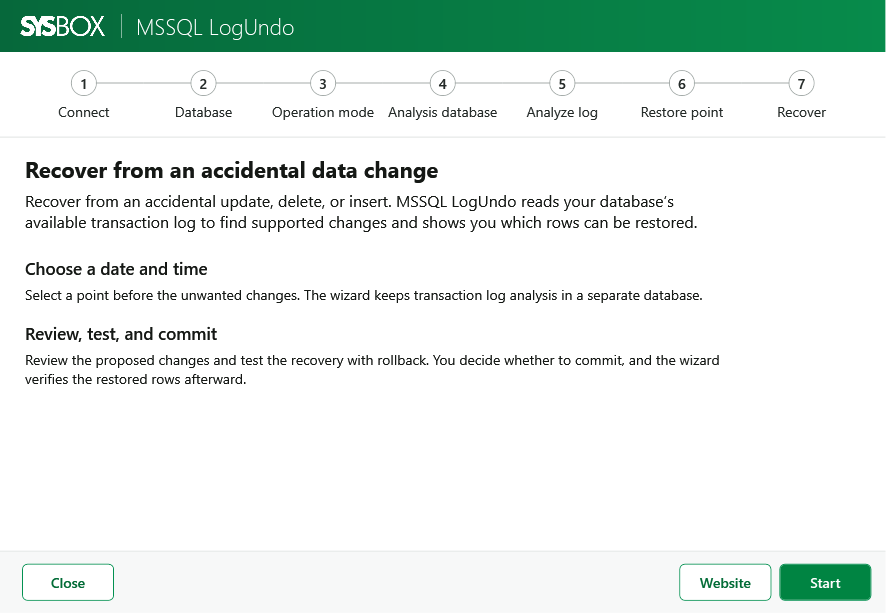
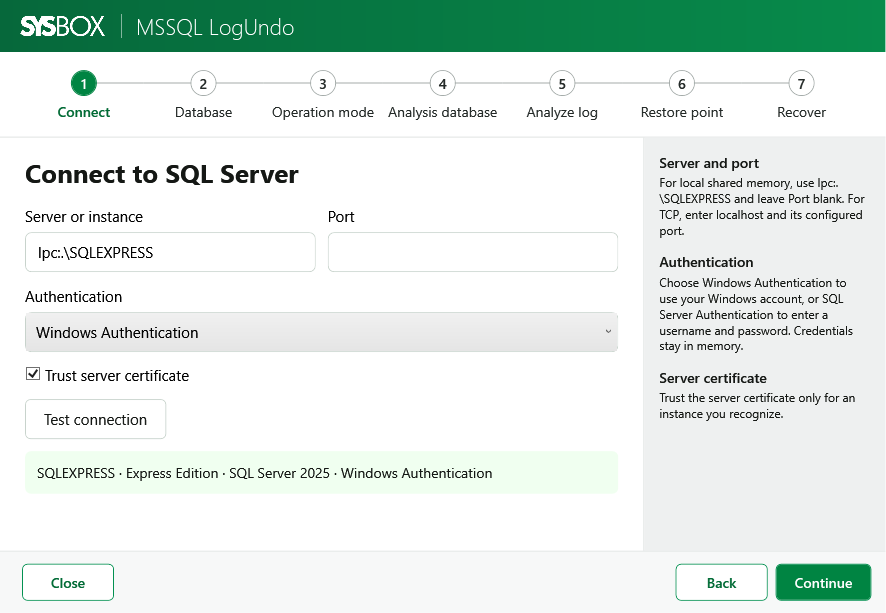
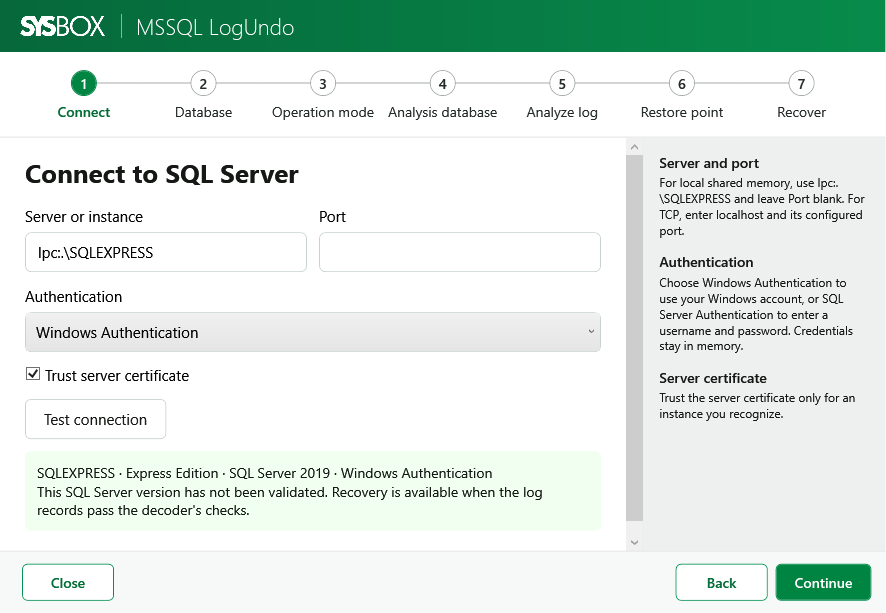
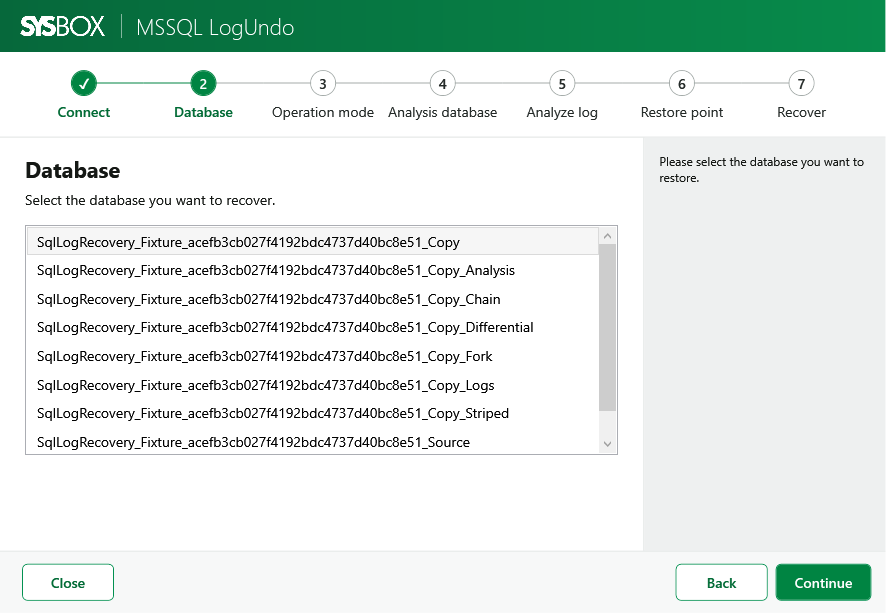
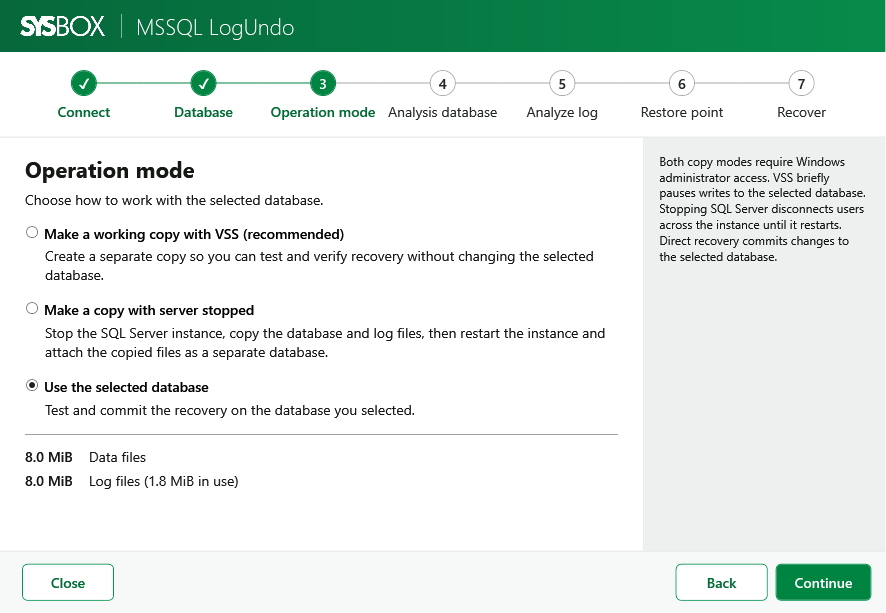
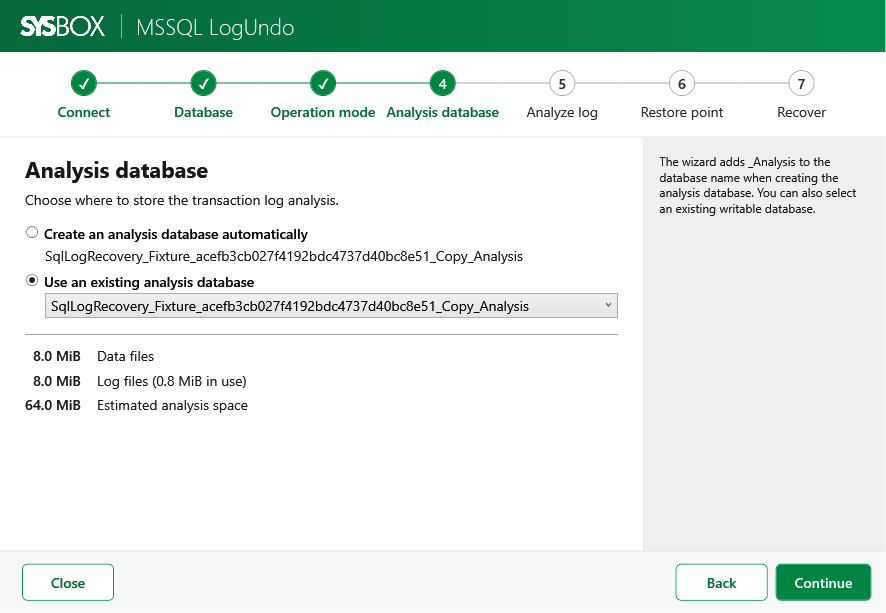
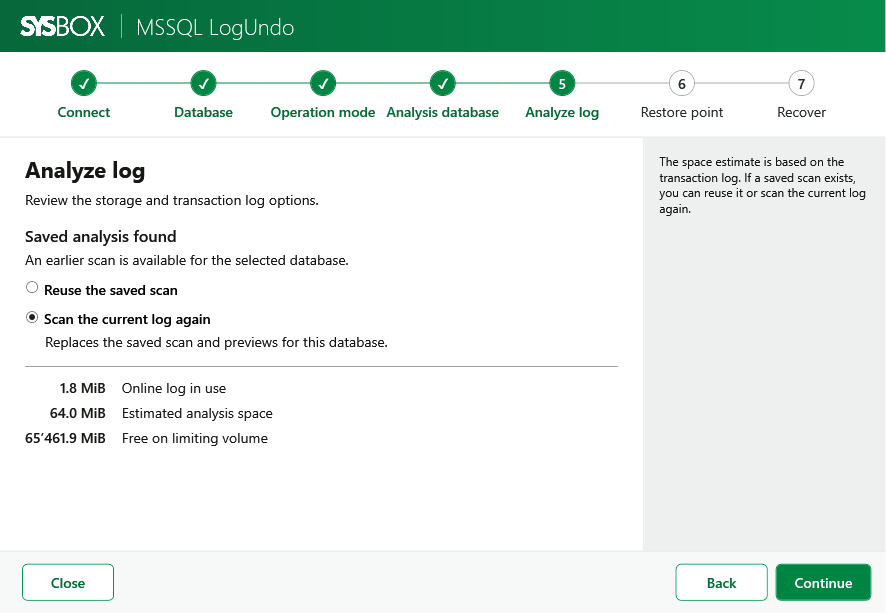
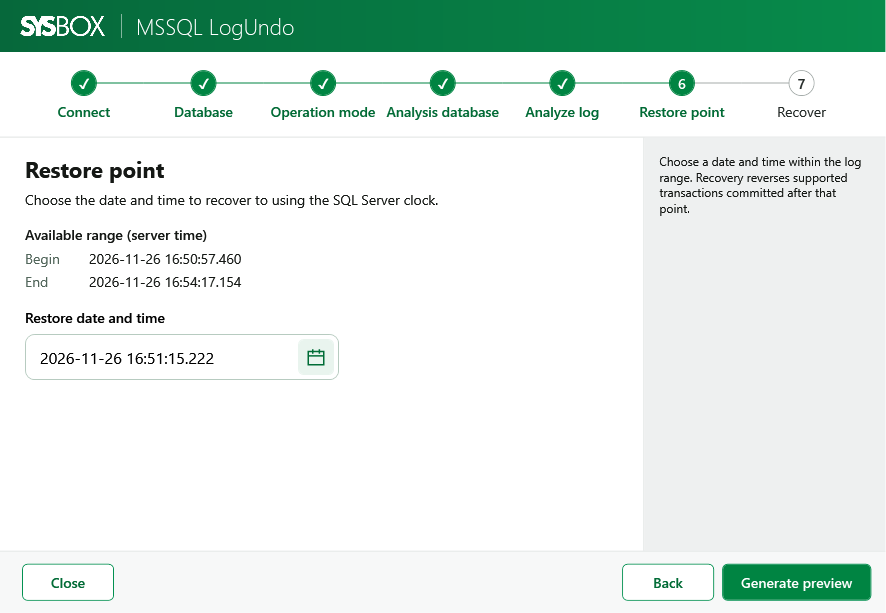
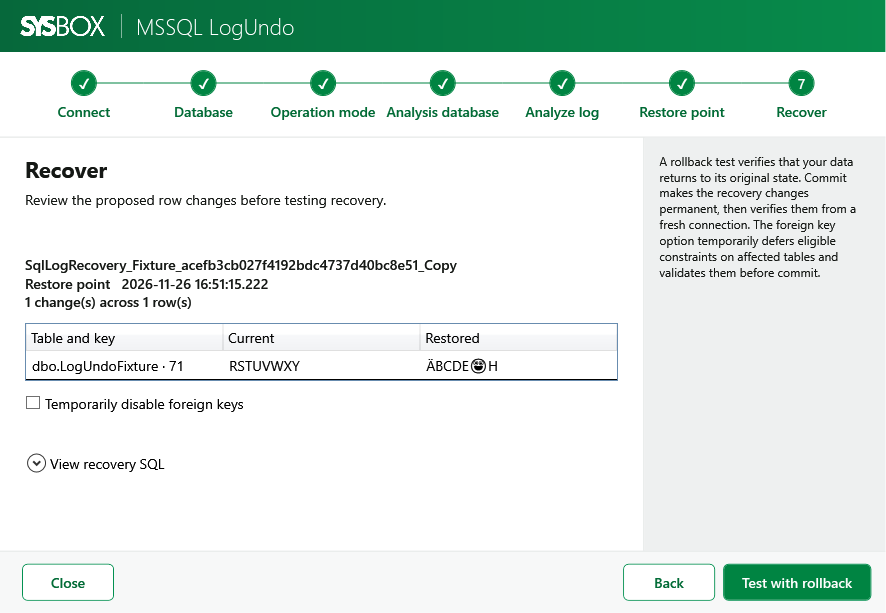
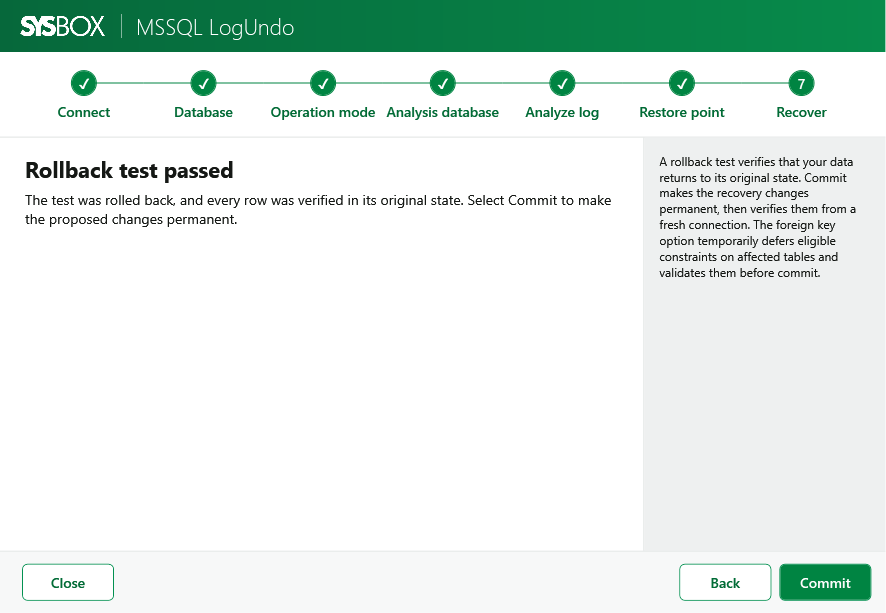
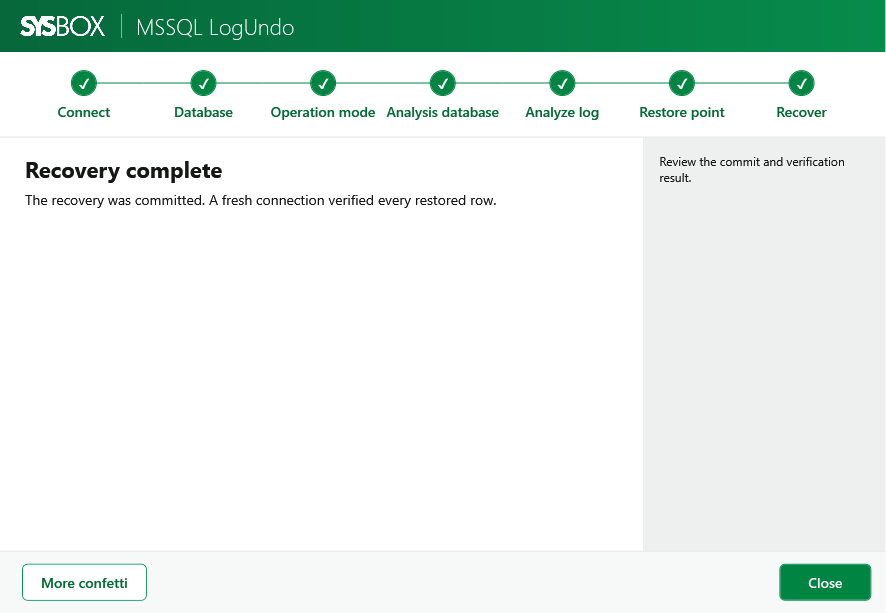
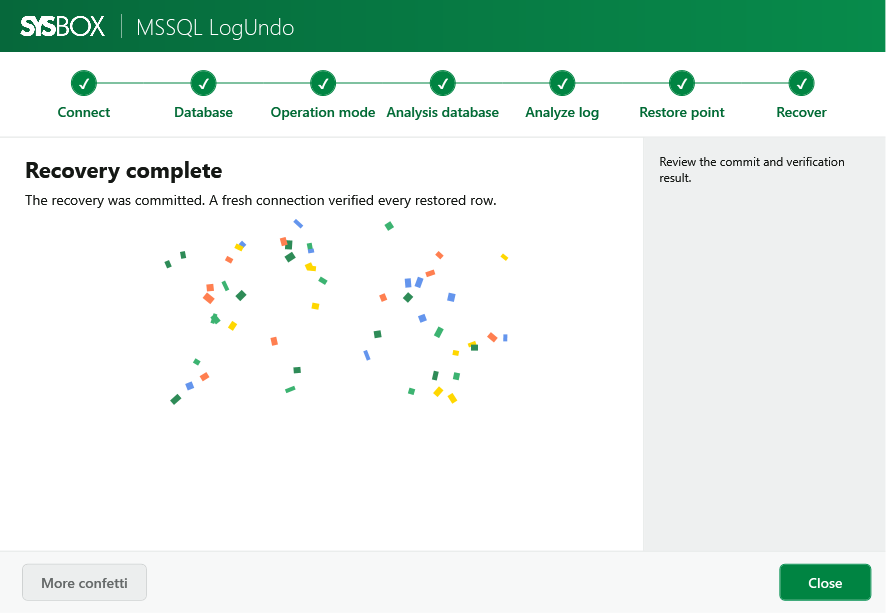
Shown with synthetic data - not a real deployment.
How it works
Connect & prepare a copy
Test the connection, pick the database, and choose VSS, a server-stopped copy, or a copy you already prepared.
Analyze & pick a point
Scan the online transaction log (or reuse a saved scan), then choose a restore date and time inside the available range.
Preview & test
Review the affected rows, then run the recovery batch in a transaction and roll it back to confirm it's safe.
Commit & verify
Commit the tested recovery, then a fresh connection checks that the restored rows are really there.
Requirements and coverage
Verified setup
Windows x64 with a local SQL Server 2025 Express instance, connected with Windows Authentication over shared memory. SQL Server 2016, 2017, 2019 and 2022 are supported with a compatibility warning. SQL Server Authentication and loopback TCP are also offered. Connection credentials are kept in memory only.
Administrator access
The copy modes require Windows administrator and SQL Server sysadmin access. VSS needs SQL Server 2022 or later with the database files on a single local volume; the server-stopped mode briefly takes the local instance offline and restarts its dependent services afterward.
FAQ
SHA-256 checksum · Version 1.0 · Windows x64, nothing else to install